 Stream My Drone
Go live from your DJI drone to Instagram, TikTok, YouTube, Facebook and custom RTMP destinations
Stream My Drone receives the DJI Fly picture on your phone and sends it to YouTube, Instagram, Facebook, TikTok, Twitch, Kick or your own RTMP server, several at once. No computer, no cables, no server.
Stream from your phone with the Android app
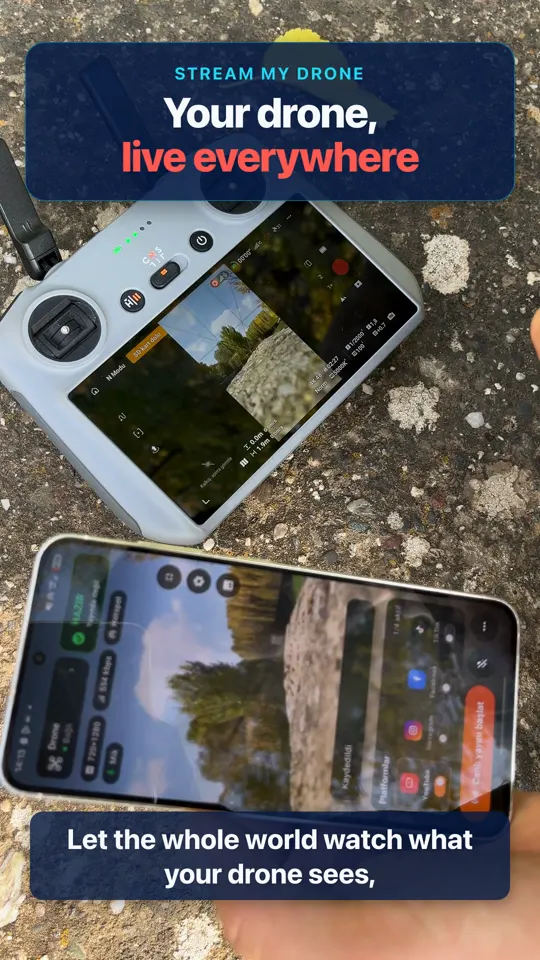
No computer at the field? Stream My Drone is the Android version: your phone receives the stream from DJI Fly and sends it straight to your platforms.
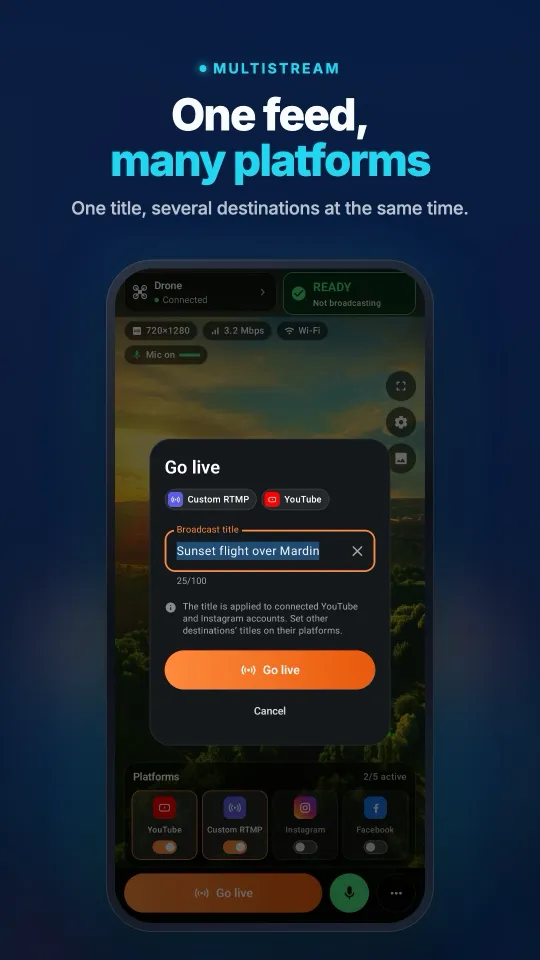
- Several platforms at once: Instagram, TikTok, YouTube, Facebook, Twitch, Kick and any custom RTMP or RTMPS server.
- A live preview of the drone picture with resolution, bitrate and connection details before you go live.
- A destination reconnects on its own after a short network drop, and the broadcast keeps running while you use another app.
- Works over the same Wi-Fi or the phone's own hotspot. Stream keys are encrypted with Android Keystore.
A one-time purchase on Google Play, no subscription. Android 9 or newer. The phone forwards the picture as DJI Fly sends it, so the virtual camera and the vertical 1080×1920 conversion remain desktop features.
Stream My Drone is also available for iOS on the App Store.
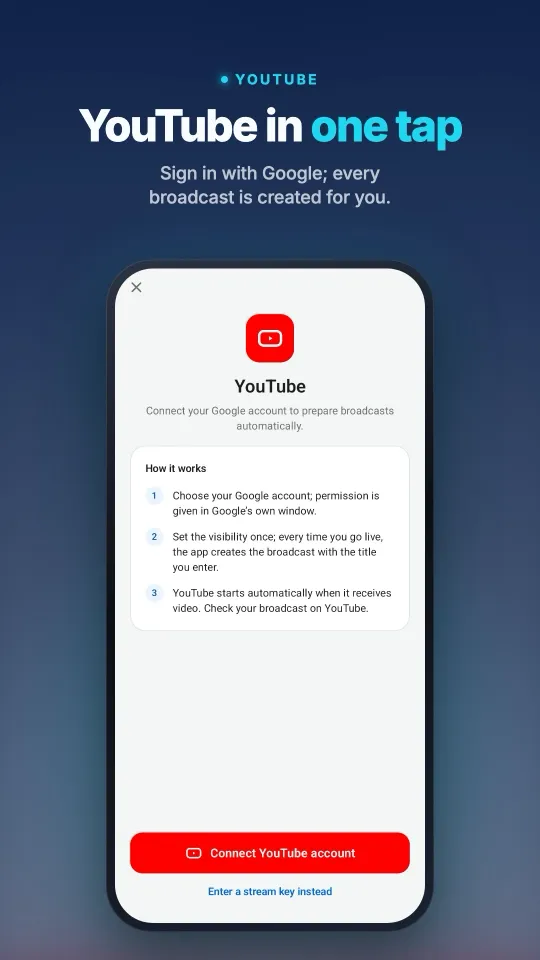
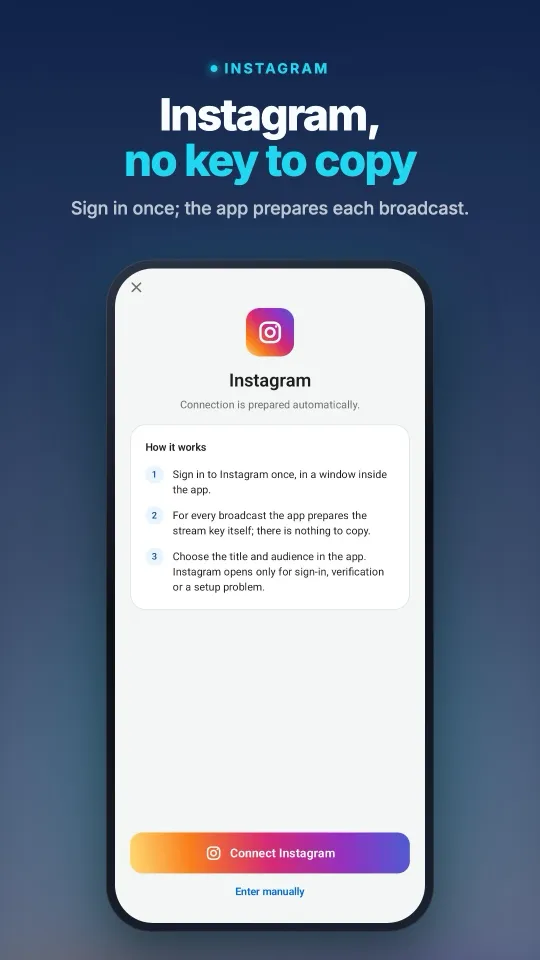
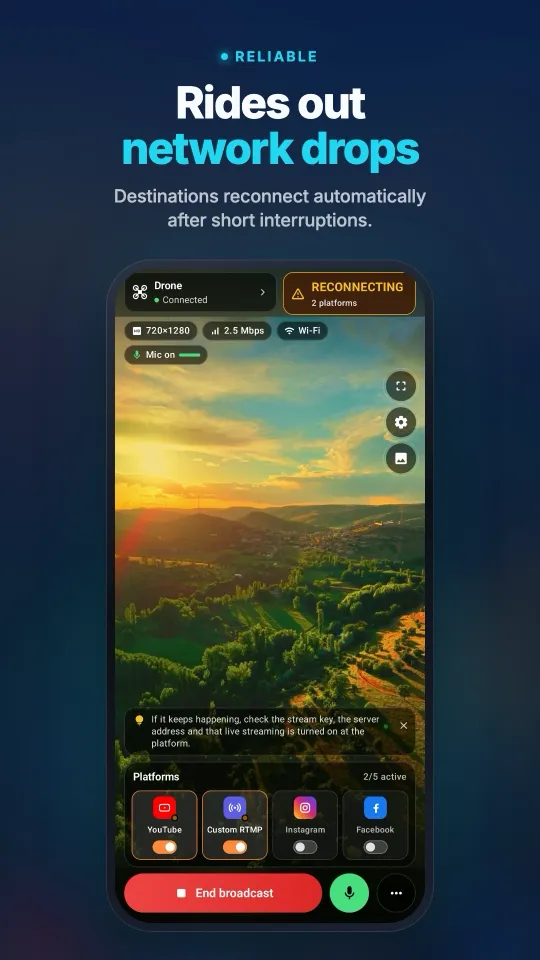
On a computer? Free for Mac and Windows
Stream My Drone takes the RTMP stream from DJI Fly on your computer and sends it to several platforms at once — or turns it into a virtual camera for TikTok LIVE Studio, where no stream key is needed.
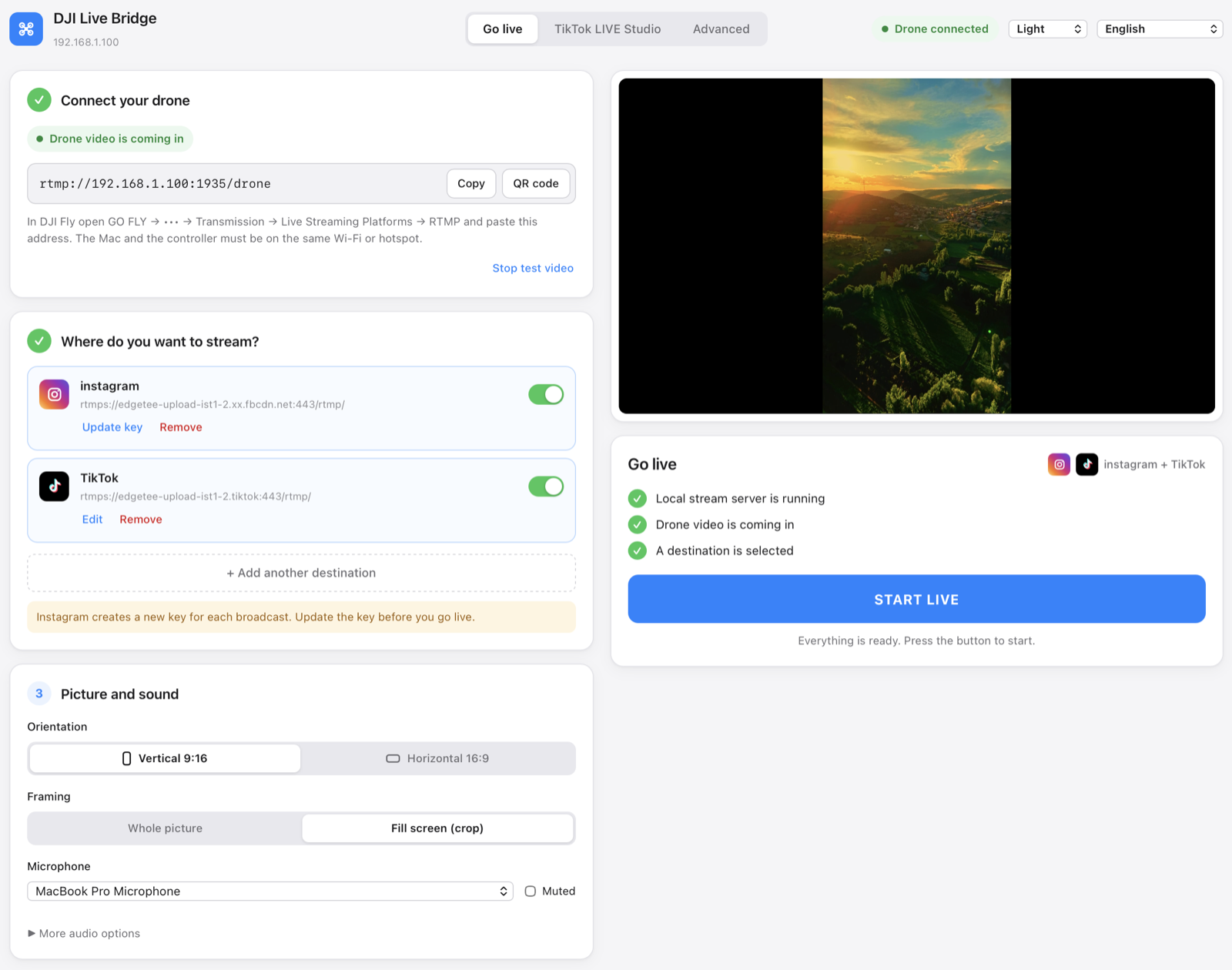
One screen: connect the drone, add destinations, press START LIVE.
What it does
Everything runs on your own computer. The drone feed never goes through anyone else's server.
Several platforms at once
Instagram, TikTok and any custom RTMP destination in the same broadcast. The picture is encoded once and forwarded to each one, so one failing destination does not stop the others.
Spots and counts animals
AI Vision finds goats, sheep, cattle, horses, donkeys and poultry in the drone picture, marks each one with a labelled box on the stream and keeps a count. It runs on your computer; no picture is uploaded.
No stream key for TikTok
The built-in virtual camera appears in TikTok LIVE Studio as “Stream My Drone Camera”, so you can go live without RTMP access.
Made for vertical video
1080×1920 at 30 fps, 6 Mbps CBR, H.264 High, 2-second keyframes. Empty space is filled with a blurred copy of the shot instead of black bars.
Nothing else to install
FFmpeg is built into the app — no Homebrew, no Terminal, no separate download. The macOS bundle is signed and notarized by Apple.
Keys stay in the system vault
Every stream key lives in its own Keychain entry, never in a config file, in process arguments or in logs.
Live preview and diagnostics
A low-latency local preview, real stream metrics from the media server, recording, and system checks that never fake a passing result.
15 languages, 5 themes
The interface follows your system language, and Arabic switches the whole layout to right-to-left.
Osmo cameras too
Osmo Action, Osmo Pocket and Osmo 360 cameras stream to the app over RTMP from DJI Mimo, just like a drone from DJI Fly.
How it works
DJI Fly sends RTMP to your computer; the computer does the rest.
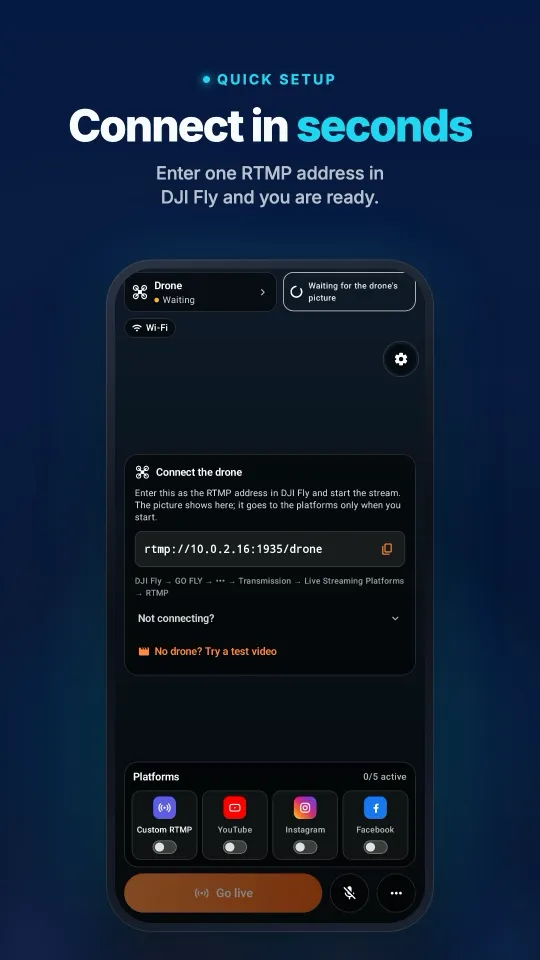
- Connect your droneIn DJI Fly: GO FLY → Transmission → Live Streaming Platforms → RTMP, and paste the address the app shows. The computer and the controller share the same Wi-Fi or phone hotspot.
- Choose where to streamAdd Instagram, TikTok or any RTMP server with the server URL and stream key from that platform. Keys are stored in the system vault.
- Press START LIVEThe button unlocks when the local server is running, drone video is arriving and a destination is selected. You then see the elapsed time, each destination's state and the data sent.
TikTok without a stream key
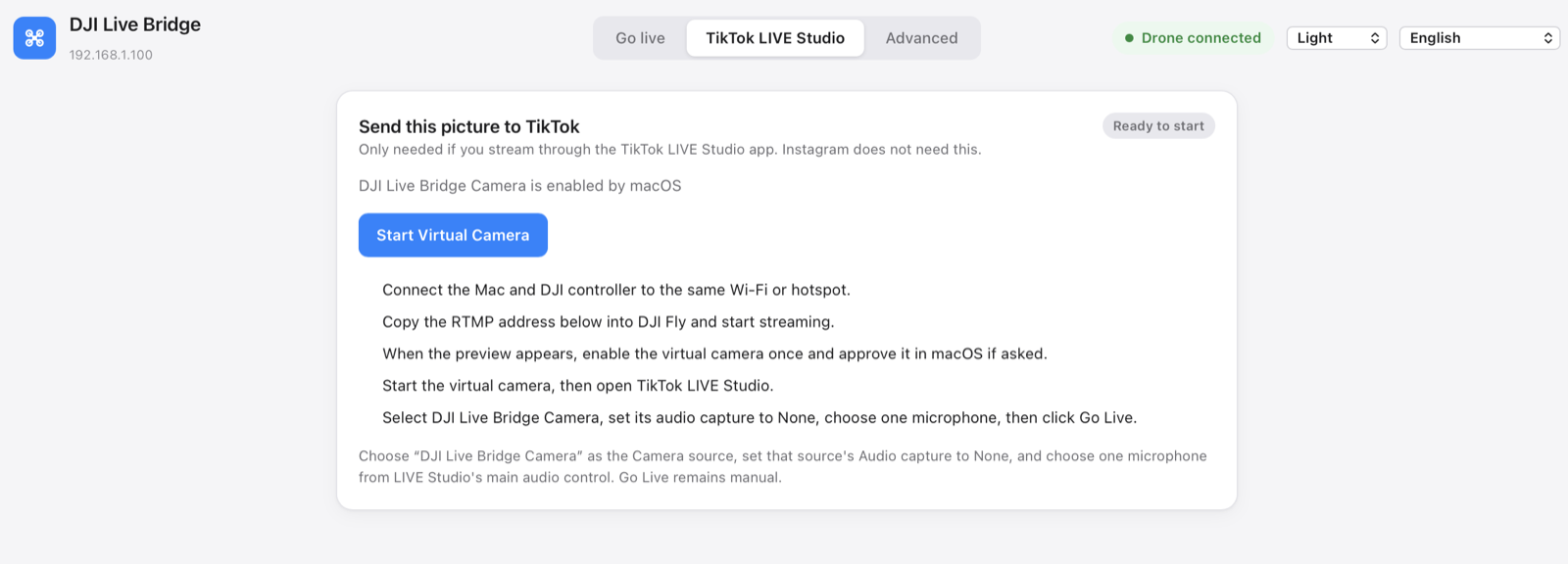
TikTok only hands out RTMP keys to some accounts. TikTok LIVE Studio has no such limit, because you log in with your account — it just needs a camera. Stream My Drone provides that camera.
- Enable the virtual camera once; your system asks for approval the first time.
- In TikTok LIVE Studio add a Camera source and pick Stream My Drone Camera.
- Set that source's audio capture to None and choose one microphone in LIVE Studio.
- Press Go Live in TikTok LIVE Studio.
The camera carries video only, on purpose: it keeps TikTok's own audio handling in charge and avoids double audio.
For the details
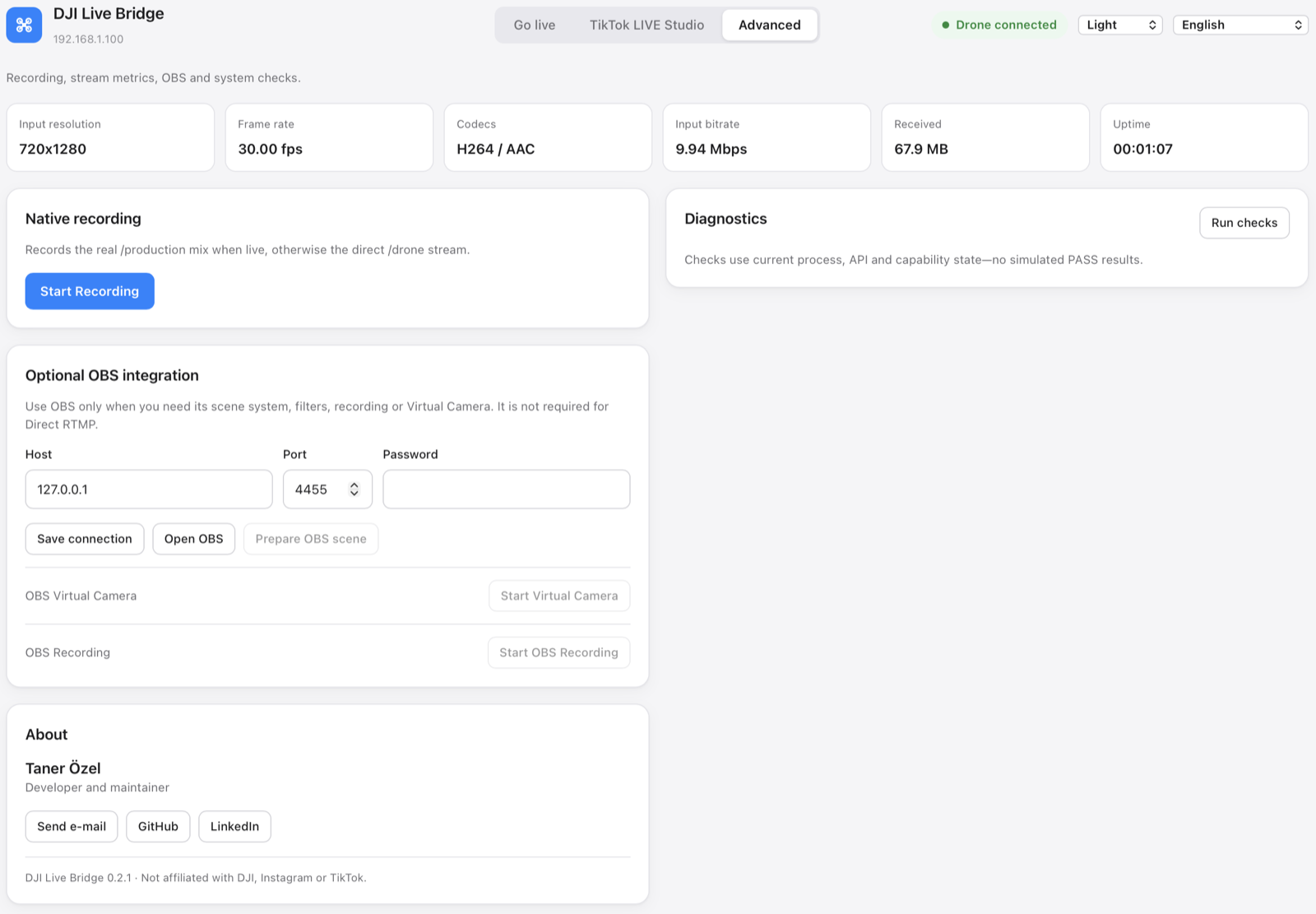
Recording, live stream metrics, optional OBS integration and system checks sit in the Advanced tab, out of the way of the main flow.
Install
- Download the DMGTake the
aarch64file for an Apple Silicon Mac (M1 and newer) or thex86_64file for an Intel Mac, then drag Stream My Drone into your Applications folder — the virtual camera only works from there. On Windows, run the-setup.exeinstaller. - Open itThat is the whole setup. FFmpeg ships inside the app, so there is no Homebrew, no Terminal and no second download.
- Go liveThe macOS app is signed and notarized by Apple, so it opens without warnings.
The app speaks 15 languages
Questions
Which drones work?
Any drone whose DJI Fly version offers RTMP under Live Streaming Platforms. The app receives a normal RTMP stream, so it does not talk to the drone itself. On the RC 2, DJI Fly may refuse to start streaming unless a microphone is connected to the controller.
Do I need to install FFmpeg?
No. The app carries its own FFmpeg, built from source without any GPL component (LGPL, Apple VideoToolbox for H.264), so there is nothing to install and nothing to keep up to date. The licence texts and the exact build flags are inside the app under Contents/Resources/licenses.
Do I need OBS?
No. OBS is optional and only useful if you want its scenes, filters or recording. Direct RTMP and the virtual camera work without it.
Does it work on an Intel Mac?
Yes. Every release ships two downloads: one for Apple Silicon and one for Intel, both signed and notarized, each with its own bundled FFmpeg. Pick the file that matches your Mac.
Does it work on Windows?
Yes. Windows 10/11 is supported. Streaming, preview, recording, diagnostics and the built-in virtual camera have all been tested. The installer registers a “Stream My Drone Camera” device for TikTok LIVE Studio, OBS and Zoom. The installer is not code-signed, so Windows SmartScreen may show a warning.
Can it detect and count animals?
Yes. Turn on AI Vision on the Go live tab: each animal gets a labelled box on the stream and the virtual camera, and a counter keeps track. Everything runs on your computer. Goats, donkeys and poultry need a Mac; on Windows it recognises sheep, cows, horses, dogs, cats, birds and bears.
Where do my stream keys go?
Into the system vault, one entry per destination. They are handed to the local media server over the loopback interface when you go live and removed when you stop. They never appear in the config file, in process arguments or in logs.
Why does Instagram ask for a new key every time?
That is Instagram's own behaviour: it issues a fresh stream key for every broadcast. Use “Update key” on the destination card before you go live, and remember to press “Go live” on Instagram's side to make the broadcast public.
Why is my picture 720p?
The DJI controller often sends 720p over RTMP. The app shows the real input resolution and does not pretend the upscaled output is native 1080p.
Guides
Step-by-step instructions for your drone, controller and platform.
How to live stream from a drone (step by step, 2026)
How to live stream from a drone to YouTube, Instagram, TikTok or Facebook: what you need, the 4 methods, DJI Fly RTMP setup in 5 steps, internet speed and fixes.
DJI Fly “Livestream error”: the causes and how to fix each one
DJI Fly says “Livestream error” or “Starting livestream failed”? The 8 real causes (RTMPS, stream key, account, microphone, network) and how to fix each one.
Which DJI drones can live stream? The full model and controller list
Every DJI drone that can live stream in DJI Fly, from Mini 2 and Mini 4K to Mavic 4 Pro and Avata 360, which controllers work, and the 720p and microphone limits.
How to live stream a wedding with a drone
Live stream a wedding with a DJI drone for guests who can’t be there: the plan, gear list, private YouTube link, phone or laptop setup, and the safety rules to follow.
DJI RC 2 won’t livestream without a microphone? How to fix “No built-in mic in current device”
DJI Fly 1.16 won't start an RC 2 livestream without a microphone. Why it happens, what works (USB-C mic, AirPods) and a no-hardware fix with an Android phone.
How to live stream a DJI Flip
Live stream DJI Flip with RC 2, RC-N3 or RC-N2: phone and computer RTMP setup, palm and phone-control distinctions, vertical framing and platform checks.
How to live stream a DJI Lito X1
Live stream a DJI Lito X1 with RC 2, RC-N3 or RC-N2: DJI Fly RTMP settings, phone and computer workflows, platform setup and practical troubleshooting.
How to live stream a DJI Lito 1
Live stream a DJI Lito 1 with RC 2, RC-N3 or RC-N2: DJI Fly RTMP settings, phone and computer workflows, platform setup and practical troubleshooting.
How to live stream a DJI Air 3S
Live stream a DJI Air 3S to YouTube, Instagram or Facebook. Choose a controller, connect DJI Fly RTMP to a phone or computer, and check the outgoing picture.
How to live stream a DJI Air 3
Live stream a DJI Air 3 to YouTube, Instagram or Facebook. Choose a controller, connect DJI Fly RTMP to a phone or computer, and check the outgoing picture.
How to live stream a DJI Mavic 4 Pro
Stream your DJI Mavic 4 Pro with RC 2 or RC Pro 2 to a phone or computer. Check DJI Fly RTMP, microphone differences, 720p limits and platform setup.
How to live stream a DJI Mavic 3, Classic or Pro
Live stream a DJI Mavic 3, Classic or Pro with RC-N1 or RC Pro. Learn why DJI RC cannot stream, plus phone receivers, desktop RTMP and quality limits.
How to live stream a DJI Mini 3 Pro
Live stream a DJI Mini 3 Pro using RC-N1, DJI Fly on your phone and Stream My Drone on a computer. Understand why the original DJI RC cannot use this RTMP route.
How to live stream a DJI Mini 3
Set up DJI Mini 3 live streaming through RC-N1 and DJI Fly to Stream My Drone on a computer. Check DJI RC limits, 720p live-view quality and platform publishing.
How to live stream a DJI Mini 5 Pro
Live stream a DJI Mini 5 Pro with RC 2 or RC-N3. Set up DJI Fly RTMP, use a phone or computer, and send your drone feed to YouTube, Instagram or Facebook.
How to live stream a DJI Mini 4 Pro
Live stream a DJI Mini 4 Pro using RC 2 or RC-N2. Follow phone and computer setup, DJI Fly RTMP settings, microphone requirements and platform checks.
Spot and count animals live from your DJI drone
Stream My Drone spots goats, sheep, cows, horses, donkeys and poultry in your drone's live picture, marks them on the stream and counts them, all on your own computer.
DJI Fly RTMP live streaming: the complete setup
How to set up RTMP live streaming in DJI Fly: where the setting is, which address to enter, how to network the controller and computer, and how to fix it.
Why DJI Fly can't live stream to Instagram (and the fix)
DJI Fly has no Instagram option and its RTMP client cannot do the encrypted RTMPS Instagram requires. Here is why, and how to go live on Instagram from a DJI drone anyway.
Turn your DJI drone into your computer's webcam
Turn your DJI drone into a webcam for TikTok LIVE Studio, OBS, Zoom, Google Meet or Teams with the Stream My Drone virtual camera. Setup, ideas and fixes.
How to live stream a DJI Neo
How to live stream a DJI Neo: which control mode works (phone, RC-N3, goggles), RTMP in DJI Fly, and going live on Instagram, TikTok or YouTube with Stream My Drone.
How to live stream a DJI Avata 2
How to live stream FPV footage from a DJI Avata 2: share the Goggles 3 view to DJI Fly on your phone, stream over RTMP and go live on Instagram, TikTok or YouTube.
Live stream your DJI Osmo camera to Instagram, TikTok and more
DJI Mimo can stream Osmo Action, Osmo Pocket and Osmo 360 cameras over RTMP. Send that to Stream My Drone to go live on Instagram, TikTok and YouTube at once.
How to live stream an Osmo Pocket 3 to Instagram and TikTok
How to live stream a DJI Osmo Pocket 3 over RTMP from DJI Mimo to Instagram, TikTok and YouTube at once, and use it as a wireless webcam, with Stream My Drone.
How to live stream an Osmo Action camera to Instagram and TikTok
Live stream a DJI Osmo Action 6, 5 Pro, 4 or 3 over RTMP from DJI Mimo to Instagram, TikTok, YouTube and Twitch at once with Stream My Drone. Setup and settings.
How to go live on TikTok with a DJI drone
Stream a DJI drone live on TikTok from DJI Fly: with a TikTok stream key, or without one through TikTok LIVE Studio and a virtual camera. Settings and fixes.
How to go live on Instagram with a DJI drone
Go live on Instagram from a DJI drone: get the stream URL and key on instagram.com, send DJI Fly's RTMP stream through Stream My Drone, then press Go live.
How to live stream a DJI drone to YouTube
Stream a DJI drone live to YouTube: enable live streaming, copy the stream key from YouTube Studio, send DJI Fly's RTMP through Stream My Drone. Settings and tips.
How to go live on Facebook with a DJI drone
Stream a DJI drone live on Facebook: get the RTMPS server URL and stream key from Live Producer, send DJI Fly's stream through Stream My Drone, and go live.
How to stream a DJI drone on Twitch
Stream a DJI drone live on Twitch: copy your stream key from the Creator Dashboard, add Twitch as a custom RTMP destination in Stream My Drone and go live.
How to stream a DJI drone on Kick
Stream a DJI drone live on Kick: copy the stream URL and key from the Kick dashboard, add them as a custom RTMP destination in Stream My Drone, and go live.
Stream a DJI drone to several platforms at once
Send one DJI drone live stream to TikTok, Instagram, YouTube, Facebook, Twitch and Kick at the same time with Stream My Drone — free, local, no restream service.
Stream My Drone vs Restream: which one for your drone?
Streaming a DJI drone to several platforms: Restream's cloud relay or Stream My Drone on your own computer? Cost, watermark, Instagram, vertical video and when each one wins.
Stream a DJI drone without setting up NGINX and OBS
The usual way to get DJI Fly into OBS is an NGINX RTMP server, a config file and a media source. Here is what that setup involves, and the one-app way to skip it.