 DJI Live Bridge
How to live stream a DJI Mini 5 Pro
Want to share the view from your DJI Mini 5 Pro while you fly? Send DJI Fly's RTMP feed to Stream My Drone on a separate phone or to DJI Live Bridge on a Mac or Windows PC. This guide starts with the controller you own, then walks through receiving the picture and publishing it on your platform.
In short
- With the screen-equipped DJI RC 2, a separate phone can receive the feed: no computer is needed.
- With RC-N3, DJI Fly uses your phone. The computer setup below keeps the receiver on another device.
- The local RTMP address goes into DJI Fly; the platform's server URL and stream key go into the receiving app.
- A preview confirms that the picture has arrived. Check the platform's live page to confirm viewers can watch.
- A higher camera recording resolution does not mean a higher RTMP broadcast resolution.
Start with your controller: RC 2 or RC-N3
DJI lists Mini 5 Pro in its DJI Fly livestream compatibility guide. Its official downloads include setup guides for DJI RC 2 and DJI RC-N3. Check the label on your controller before following the instructions.
| Controller | Where you fly | Where you receive the stream |
|---|---|---|
| DJI RC 2 | DJI Fly on the built-in screen | Stream My Drone on a separate phone, or DJI Live Bridge on a computer |
| DJI RC-N3 | DJI Fly on the phone connected by USB | DJI Live Bridge on a computer for the setup described here |
DJI RC and DJI RC 2 are different controllers. DJI's livestream guide says RC 2 requires a connected microphone from DJI Fly v1.16.0 and streams at 720p. Check the RTMP menu and available settings on your own firmware.
Mini 5 Pro with RC 2: live stream without a computer
- Install Stream My Drone on your phoneGet the app from Google Play or the App Store. The phone receives the stream while DJI Fly stays open on the RC 2.
- Connect the RC 2 and phoneJoin both to the same Wi-Fi with internet access. In the field, an Android phone can host the hotspot and receive the stream. Open Stream My Drone after choosing the network; on iPhone, allow local network access when requested.
- Copy the receiving address into DJI FlyUse the full local address shown by Stream My Drone. In DJI Fly, open GO FLY → ••• → Transmission → Live Streaming Platforms → RTMP. Enter the address there. The full menu walkthrough is in the DJI Fly RTMP setup guide. Connect a microphone if DJI Fly requests one.
- Start the DJI Fly feed and check the previewStart streaming on the controller, then confirm the moving drone picture appears on your phone. Keep Stream My Drone open while checking the connection. This establishes the local video link.
- Choose a destination and confirm publicationAdd a platform in Stream My Drone using its account connection where available, or its server URL and stream key. Start forwarding, then open the platform's live dashboard or viewer page. Complete any Go Live step the platform still requires.
The phone forwards the incoming video without re-encoding it. The preview's crop or blurred background does not turn the outgoing feed into vertical 1080×1920. Use the desktop app when you need that conversion. On iPhone, keep the app in the foreground during setup; continued background streaming depends on Picture in Picture.
Mini 5 Pro with RC-N3, or a desktop production setup
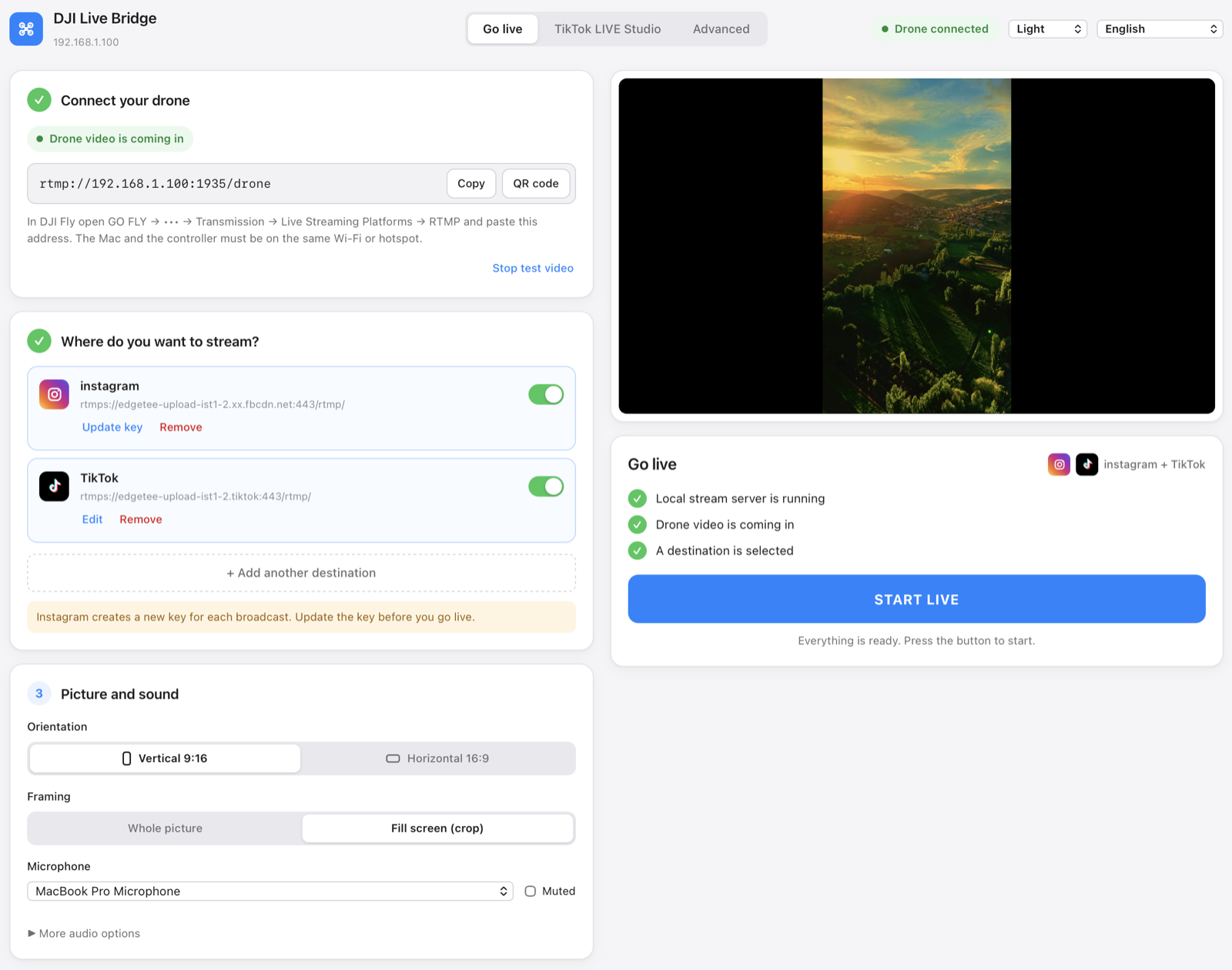
With RC-N3, keep DJI Fly open on the phone attached to the controller. Install DJI Live Bridge on a Mac or Windows PC and connect that computer and the DJI Fly phone to the same local network. RC 2 can use this desktop route too.
- Find the computer's RTMP addressOpen DJI Live Bridge and copy the address under Connect your drone. An address such as
rtmp://192.168.1.20:1935/droneis an example; use the one your app displays. - Send DJI Fly to that addressEnter it in DJI Fly's RTMP settings and start the feed. Allow incoming connections on your private network if the computer's firewall asks. Check the preview before adding a destination.
- Set the output and platformChoose landscape for a conventional YouTube or Facebook broadcast, or vertical output for an account using a portrait layout. Add the destination's current server URL and key, start the output, and verify the broadcast on the platform.
Which platform do you want to reach?
| Platform | What to prepare | Detailed guide |
|---|---|---|
| YouTube | An account with live streaming enabled and a prepared broadcast | YouTube setup |
| Access to Live Producer and current RTMPS credentials | Instagram setup | |
| A live broadcast with its server URL and key | Facebook setup | |
| TikTok | RTMP access on your account, or a computer with access to LIVE Studio | TikTok setup |
Platform access belongs to your account. Receiving a drone feed in the app does not grant a stream key or publish a broadcast. For TikTok LIVE Studio, the desktop app also offers a virtual camera. Check each platform's dashboard for the current publishing step.
Set realistic expectations for picture quality and mobile data
The file recorded on the drone, the picture shown on the controller and the RTMP feed are separate outputs. Judge the broadcast by the receiver's input resolution and bitrate. Scaling a 720p input on the desktop changes its output dimensions; it cannot recover detail missing from the input.
- Test before takeoff. Check movement, sound and the platform's viewer page while the drone is on the ground.
- Budget for upload. A continuous 5 Mbps output uses about 2.25 GB per hour before network overhead. Two such destinations need about 10 Mbps combined upload and 4.5 GB per hour.
- Keep the local link strong. Keep the phone or computer near the hotspot. A stable connection matters more than the network's advertised peak speed.
- Watch the actual outgoing framing. On mobile, the preview layout is local. On desktop, check the selected crop or whole-picture output before publishing.
Troubleshooting a Mini 5 Pro broadcast
- No RTMP menu: check the controller model, update its firmware and DJI Fly, and look under Transmission. The receiving app cannot add a missing DJI Fly feature.
- Connection fails: copy the app's address again after a network change. Use a shared local network without guest isolation;
localhoston the controller points to the controller itself. - Picture on the phone, nothing for viewers: check the destination connection, current stream key and the platform's final publishing step. Forwarding bytes alone do not confirm a public broadcast.
- Stream stops after switching iPhone apps: return to Stream My Drone and check Picture in Picture. Without it, iOS can suspend the receiver.
- Choppy broadcast: try one destination first, check cellular upload stability and move the receiver closer to the hotspot.
Sources and related model guides
Controller requirements and RTMP limits: DJI Fly App Livestream Operation Guides. Model listing: DJI's compatibility guide (Chinese). Controller manuals: Mini 5 Pro downloads. Checked on October 21, 2026; available menus can change with firmware.
Flying the previous model? Read the Mini 4 Pro live streaming guide. For sending one feed to several destinations, continue with the multistreaming guide.
Questions
Can I live stream a Mini 5 Pro without a computer?
With RC 2, use Stream My Drone on a separate phone connected to the same local network. DJI Fly runs on the controller, the phone receives its RTMP feed, and you configure the destination in Stream My Drone.
Can I use the phone already connected to RC-N3?
That phone runs DJI Fly for flight control. This guide uses DJI Live Bridge on a separate computer as the receiver, so you can keep DJI Fly open. It does not assume both apps can handle a live flight and relay on one phone.
Which address goes into DJI Fly?
The full local receiving address displayed by Stream My Drone or DJI Live Bridge. Put the platform's server URL and stream key into the receiving app's destination settings.
Does Stream My Drone turn the video into a vertical broadcast?
The mobile app forwards the video it receives. Its preview layout does not re-encode the outgoing picture. DJI Live Bridge on a computer offers vertical output conversion.
Why can I see a preview but my audience cannot watch?
The preview proves only that the local drone feed has arrived. Start a destination output, confirm that the platform receives it, and complete any remaining Go Live step there.
Try it with your drone
DJI Live Bridge is free and open source, for macOS and Windows. FFmpeg is built in, so there is nothing else to install.
More guides
How to live stream a DJI Mini 4 Pro
Live stream a DJI Mini 4 Pro using RC 2 or RC-N2. Follow phone and computer setup, DJI Fly RTMP settings, microphone requirements and platform checks.
Spot and count animals live from your DJI drone
DJI Live Bridge spots goats, sheep, cows, horses, donkeys and poultry in your drone's live picture, marks them on the stream and counts them, all on your own computer.
DJI Fly RTMP live streaming: the complete setup
How to set up RTMP live streaming in DJI Fly: where the setting is, which address to enter, how to network the controller and computer, and how to fix it.
Why DJI Fly can't live stream to Instagram (and the fix)
DJI Fly has no Instagram option and its RTMP client cannot do the encrypted RTMPS Instagram requires. Here is why, and how to go live on Instagram from a DJI drone anyway.
Turn your DJI drone into your computer's webcam
Turn your DJI drone into a webcam for TikTok LIVE Studio, OBS, Zoom, Google Meet or Teams with the DJI Live Bridge virtual camera. Setup, ideas and fixes.
How to live stream a DJI Neo
How to live stream a DJI Neo: which control mode works (phone, RC-N3, goggles), RTMP in DJI Fly, and going live on Instagram, TikTok or YouTube with DJI Live Bridge.
How to live stream a DJI Avata 2
How to live stream FPV footage from a DJI Avata 2: share the Goggles 3 view to DJI Fly on your phone, stream over RTMP and go live on Instagram, TikTok or YouTube.
Live stream your DJI Osmo camera to Instagram, TikTok and more
DJI Mimo can stream Osmo Action, Osmo Pocket and Osmo 360 cameras over RTMP. Send that to DJI Live Bridge to go live on Instagram, TikTok and YouTube at once.
How to live stream an Osmo Pocket 3 to Instagram and TikTok
How to live stream a DJI Osmo Pocket 3 over RTMP from DJI Mimo to Instagram, TikTok and YouTube at once, and use it as a wireless webcam, with DJI Live Bridge.
How to live stream an Osmo Action camera to Instagram and TikTok
Live stream a DJI Osmo Action 6, 5 Pro, 4 or 3 over RTMP from DJI Mimo to Instagram, TikTok, YouTube and Twitch at once with DJI Live Bridge. Setup and settings.
How to go live on TikTok with a DJI drone
Stream a DJI drone live on TikTok from DJI Fly: with a TikTok stream key, or without one through TikTok LIVE Studio and a virtual camera. Settings and fixes.
How to go live on Instagram with a DJI drone
Go live on Instagram from a DJI drone: get the stream URL and key on instagram.com, send DJI Fly's RTMP stream through DJI Live Bridge, then press Go live.
How to live stream a DJI drone to YouTube
Stream a DJI drone live to YouTube: enable live streaming, copy the stream key from YouTube Studio, send DJI Fly's RTMP through DJI Live Bridge. Settings and tips.
How to go live on Facebook with a DJI drone
Stream a DJI drone live on Facebook: get the RTMPS server URL and stream key from Live Producer, send DJI Fly's stream through DJI Live Bridge, and go live.
How to stream a DJI drone on Twitch
Stream a DJI drone live on Twitch: copy your stream key from the Creator Dashboard, add Twitch as a custom RTMP destination in DJI Live Bridge and go live.
How to stream a DJI drone on Kick
Stream a DJI drone live on Kick: copy the stream URL and key from the Kick dashboard, add them as a custom RTMP destination in DJI Live Bridge, and go live.
Stream a DJI drone to several platforms at once
Send one DJI drone live stream to TikTok, Instagram, YouTube, Facebook, Twitch and Kick at the same time with DJI Live Bridge — free, local, no restream service.
DJI Live Bridge vs Restream: which one for your drone?
Streaming a DJI drone to several platforms: Restream's cloud relay or DJI Live Bridge on your own computer? Cost, watermark, Instagram, vertical video and when each one wins.
Stream a DJI drone without setting up NGINX and OBS
The usual way to get DJI Fly into OBS is an NGINX RTMP server, a config file and a media source. Here is what that setup involves, and the one-app way to skip it.