 DJI Live Bridge
Turn your DJI drone into your computer's webcam
DJI Live Bridge does more than restream. Its virtual camera hands the live picture from DJI Fly to your computer as an ordinary camera called DJI Live Bridge Camera, so any app with a camera menu — TikTok LIVE Studio, OBS, Zoom, Google Meet, Microsoft Teams — can show what your drone sees. No stream key, no streaming account.
In short
- DJI Live Bridge adds a camera called DJI Live Bridge Camera to your computer that shows your drone's live picture.
- Any app that lets you choose a camera can use it: TikTok LIVE Studio, OBS, Zoom, Google Meet, Microsoft Teams or a browser-based studio.
- No stream key and no platform account are needed — the drone simply becomes a camera.
- The camera is vertical, 1080×1920 at 30 fps, and carries video only; you choose the microphone in the app that uses it.
- For landscape video calls, send the drone through OBS with the horizontal 16:9 layout and use OBS Virtual Camera.
What the virtual camera does
Normally a drone's live picture goes to a streaming platform. The virtual camera takes another route: DJI Fly sends the picture over RTMP to DJI Live Bridge on your computer, and the app hands it to the operating system as a camera. To every other app, your drone looks like a webcam plugged into the computer.
So the other app needs no stream key, no streaming account and no RTMP support. If it has a camera menu, the drone can be in it.
- Name: DJI Live Bridge Camera.
- Picture: vertical 1080×1920 at 30 fps. A landscape drone picture sits in the middle of the frame with black above and below; nothing is cropped.
- Sound: none, on purpose. You pick a microphone in the app that uses the camera, so you never hear the audio twice.
- Systems: macOS 13 or newer (the app must be in the Applications folder), and Windows 10/11.
What you can do with it
A few ideas — anything that accepts a webcam can show the view from your drone.
- Go live on TikTok without a stream key. Pick the camera in TikTok LIVE Studio and broadcast from there. The full walkthrough is in the TikTok guide.
- Build a show in OBS. Add the camera as a video source and put text, a logo, a map or your own face cam over the aerial shot, then stream or record from OBS.
- Show a site on a video call. Let a client, your team or an insurer watch a roof, a building site, a solar farm or a field live on Zoom, Google Meet or Microsoft Teams, instead of sending photos afterwards.
- Give a virtual tour. Take viewers over a property, a campsite, a venue or a route from the air while you talk them through it.
- Teach and present. Use the aerial view in a lesson, a webinar or a presentation about geography, farming, surveying or flying itself.
- Join a browser studio. Browser-based studios such as StreamYard or Restream Studio can usually pick the camera like any other webcam, so the drone can be one of the guests in a multi-camera show.
The camera shows the drone's picture as long as DJI Live Bridge is open and DJI Fly is sending. When no picture arrives, the camera is black.
How to turn your drone into a webcam
- Install the app in the right placeOn a Mac, drag DJI Live Bridge into the Applications folder; macOS only allows a camera extension from there. On Windows, the installer registers the camera.
- Send the drone's picture to the computerIn DJI Fly open GO FLY → ••• → Transmission → Live Streaming Platforms → RTMP and paste the address shown on the app's Go live tab. The controller and the computer must be on the same Wi-Fi or hotspot. The details are in the DJI Fly RTMP guide.
- Enable the camera onceIn the TikTok LIVE Studio tab press Enable Virtual Camera — One Time. macOS asks for approval once, under System Settings → General → Login Items & Extensions → Camera Extensions.
- Start the cameraWhen the card reads Ready to start, press Start Virtual Camera.
- Choose it in your appIn TikTok LIVE Studio, OBS, Zoom, Meet or Teams, open the camera menu and pick DJI Live Bridge Camera. Choose your microphone there as well.
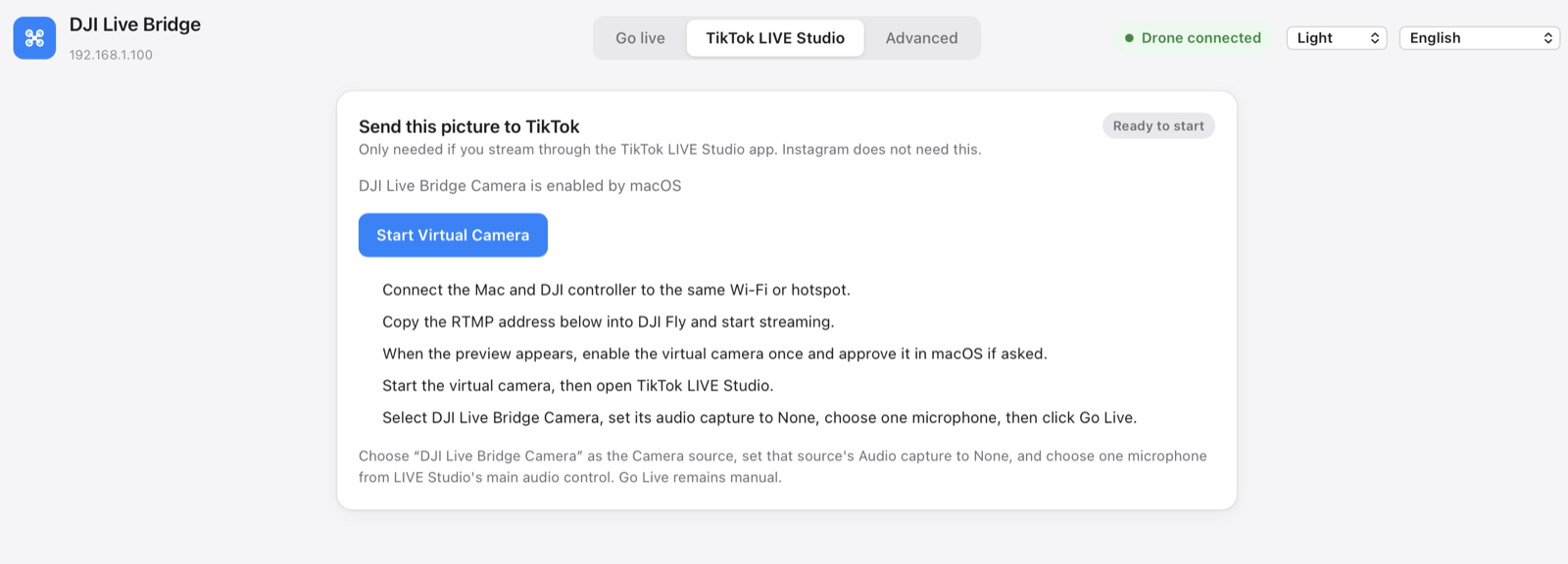
No drone nearby? Try with a video file on the Go live tab sends a recorded clip along the same path, so you can set up the camera in your app before the flight.
Landscape video calls: go through OBS
The built-in camera is vertical, because TikTok LIVE Studio and phone-first platforms are. Zoom, Meet and Teams are built around landscape cameras, so depending on the app and layout they show the tall frame with wide bars or crop it, and the drone picture ends up small. For a landscape call, use the optional OBS integration: it gives OBS the drone's full picture on a 1920×1080 canvas.
- Turn on OBS WebSocketIn OBS open Tools → WebSocket Server Settings and enable the server (port 4455 by default).
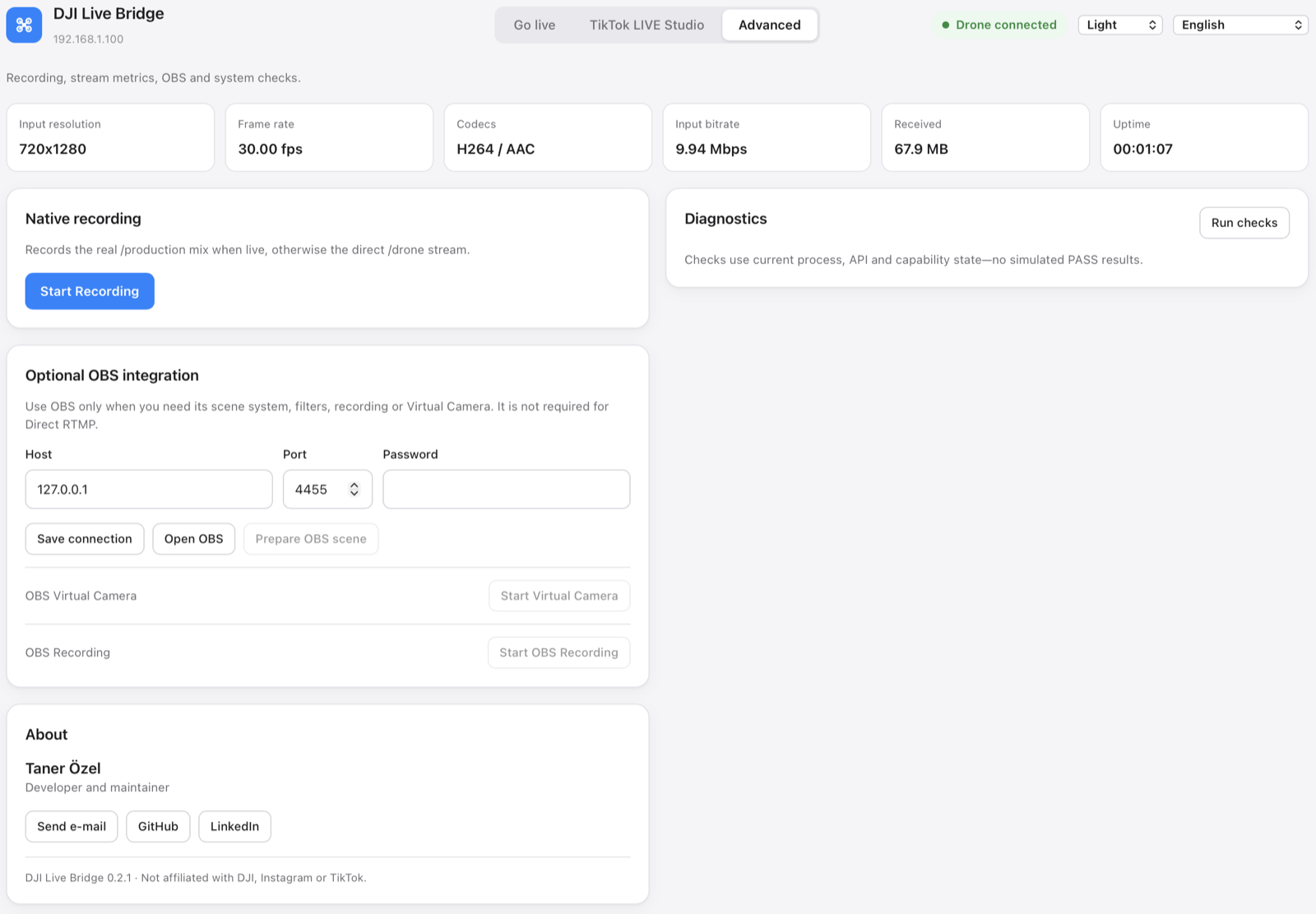
- Connect DJI Live Bridge to OBSIn the Advanced tab, under Optional OBS integration, enter the host, port and password, then press Save connection.
- Choose the horizontal layoutOn the Go live tab, under Picture and sound, set the orientation to Horizontal 16:9.
- Prepare the sceneWith drone video arriving, press Prepare OBS scene. The app creates a scene named DJI LIVE, sets the OBS canvas to 1920×1080 and fits the drone picture into it.
- Start OBS Virtual CameraPress Start Virtual Camera next to OBS Virtual Camera in the same card, then pick OBS Virtual Camera in Zoom, Meet or Teams.
| DJI Live Bridge Camera | OBS Virtual Camera | |
|---|---|---|
| Shape | Vertical 1080×1920 | Follows the layout: 1920×1080 or 1080×1920 |
| Needs OBS | No | Yes, with WebSocket enabled |
| Overlays and scenes | No | Yes, everything OBS offers |
| Best for | TikTok LIVE Studio, vertical shows | Zoom, Meet, Teams, landscape shows |
Tips for a clean picture
- Pick one microphone in the app that uses the camera. The drone camera has no sound, so there is nothing to mute.
- Expect a short delay. The picture travels from the drone to the controller, over Wi-Fi to the computer and then into the camera, so it runs a little behind real time. That is fine for showing a place, not for anything that needs exact timing.
- Use a steady network. A weak link between the controller and the computer shows up as stutter. A phone hotspot right next to the computer often beats a distant router.
- 720p is normal. The controller often sends 720p; the camera scales it into the frame and does not pretend it is native 1080p.
- Keep the app open. Quitting DJI Live Bridge stops the camera.
When the camera does not show up
- It is not in the camera list: start the virtual camera first, then quit and reopen the app that should use it — many apps read the camera list only at launch.
- macOS never asked for approval: make sure DJI Live Bridge runs from the Applications folder, then look under System Settings → General → Login Items & Extensions → Camera Extensions.
- It stopped after an update: replacing the app makes macOS switch the old camera off. Press Start Virtual Camera again; it requests activation itself. If macOS asks for it, restart the Mac.
- The picture is black: no drone video is arriving. Check the preview on the Go live tab and the RTMP address in DJI Fly.
- A browser does not show it: allow camera access for the site and reload the page.
- Windows: the built-in camera has been tested with TikTok LIVE Studio, OBS and Zoom. Select “DJI Live Bridge Camera” as the video source.
Questions
Can I use my DJI drone as a webcam?
Yes. With DJI Live Bridge running and DJI Fly sending RTMP to it, the drone appears as a camera named DJI Live Bridge Camera in any app that lets you choose a camera.
Does it work in Zoom, Google Meet and Microsoft Teams?
They can select the camera like any webcam. Because the built-in camera is vertical, a landscape call looks better through OBS: prepare the OBS scene with the horizontal 16:9 layout and choose OBS Virtual Camera in the call.
Do I need a stream key or a streaming account?
No. The virtual camera stays on your computer and sends nothing to a platform. A stream key is only needed when DJI Live Bridge itself streams over RTMP.
Does the virtual camera carry sound?
No, it carries video only. Choose your microphone in the app that uses the camera.
Which drones work?
Any DJI drone whose DJI Fly version offers RTMP under Live Streaming Platforms. The app never talks to the drone itself; it only receives the RTMP stream.
Is it free?
Yes. DJI Live Bridge is free and open source under the MIT licence, and is not affiliated with DJI, Zoom, Google or Microsoft.
Try it with your drone
DJI Live Bridge is free and open source, for macOS and Windows. FFmpeg is built in, so there is nothing else to install.
More guides
How to live stream a DJI Mini 5 Pro
Live stream a DJI Mini 5 Pro with RC 2 or RC-N3. Set up DJI Fly RTMP, use a phone or computer, and send your drone feed to YouTube, Instagram or Facebook.
How to live stream a DJI Mini 4 Pro
Live stream a DJI Mini 4 Pro using RC 2 or RC-N2. Follow phone and computer setup, DJI Fly RTMP settings, microphone requirements and platform checks.
Spot and count animals live from your DJI drone
DJI Live Bridge spots goats, sheep, cows, horses, donkeys and poultry in your drone's live picture, marks them on the stream and counts them, all on your own computer.
DJI Fly RTMP live streaming: the complete setup
How to set up RTMP live streaming in DJI Fly: where the setting is, which address to enter, how to network the controller and computer, and how to fix it.
Why DJI Fly can't live stream to Instagram (and the fix)
DJI Fly has no Instagram option and its RTMP client cannot do the encrypted RTMPS Instagram requires. Here is why, and how to go live on Instagram from a DJI drone anyway.
How to live stream a DJI Neo
How to live stream a DJI Neo: which control mode works (phone, RC-N3, goggles), RTMP in DJI Fly, and going live on Instagram, TikTok or YouTube with DJI Live Bridge.
How to live stream a DJI Avata 2
How to live stream FPV footage from a DJI Avata 2: share the Goggles 3 view to DJI Fly on your phone, stream over RTMP and go live on Instagram, TikTok or YouTube.
Live stream your DJI Osmo camera to Instagram, TikTok and more
DJI Mimo can stream Osmo Action, Osmo Pocket and Osmo 360 cameras over RTMP. Send that to DJI Live Bridge to go live on Instagram, TikTok and YouTube at once.
How to live stream an Osmo Pocket 3 to Instagram and TikTok
How to live stream a DJI Osmo Pocket 3 over RTMP from DJI Mimo to Instagram, TikTok and YouTube at once, and use it as a wireless webcam, with DJI Live Bridge.
How to live stream an Osmo Action camera to Instagram and TikTok
Live stream a DJI Osmo Action 6, 5 Pro, 4 or 3 over RTMP from DJI Mimo to Instagram, TikTok, YouTube and Twitch at once with DJI Live Bridge. Setup and settings.
How to go live on TikTok with a DJI drone
Stream a DJI drone live on TikTok from DJI Fly: with a TikTok stream key, or without one through TikTok LIVE Studio and a virtual camera. Settings and fixes.
How to go live on Instagram with a DJI drone
Go live on Instagram from a DJI drone: get the stream URL and key on instagram.com, send DJI Fly's RTMP stream through DJI Live Bridge, then press Go live.
How to live stream a DJI drone to YouTube
Stream a DJI drone live to YouTube: enable live streaming, copy the stream key from YouTube Studio, send DJI Fly's RTMP through DJI Live Bridge. Settings and tips.
How to go live on Facebook with a DJI drone
Stream a DJI drone live on Facebook: get the RTMPS server URL and stream key from Live Producer, send DJI Fly's stream through DJI Live Bridge, and go live.
How to stream a DJI drone on Twitch
Stream a DJI drone live on Twitch: copy your stream key from the Creator Dashboard, add Twitch as a custom RTMP destination in DJI Live Bridge and go live.
How to stream a DJI drone on Kick
Stream a DJI drone live on Kick: copy the stream URL and key from the Kick dashboard, add them as a custom RTMP destination in DJI Live Bridge, and go live.
Stream a DJI drone to several platforms at once
Send one DJI drone live stream to TikTok, Instagram, YouTube, Facebook, Twitch and Kick at the same time with DJI Live Bridge — free, local, no restream service.
DJI Live Bridge vs Restream: which one for your drone?
Streaming a DJI drone to several platforms: Restream's cloud relay or DJI Live Bridge on your own computer? Cost, watermark, Instagram, vertical video and when each one wins.
Stream a DJI drone without setting up NGINX and OBS
The usual way to get DJI Fly into OBS is an NGINX RTMP server, a config file and a media source. Here is what that setup involves, and the one-app way to skip it.